

Enabling Two-Factor Authentication (2FA) in Your Profile Settings
To add an extra layer of security to your account, you can enable Two-Factor Authentication (2FA) from your profile. You have two options: receive codes via SMS (text message) or use an authenticator app (e.g., Google Authenticator, Microsoft Authenticator). Once enabled, you’ll be required to enter a one-time code each time you sign in.
1. Navigating to Your Security Settings
- Sign In
- First, log in to your account using your email and password (and complete any existing 2FA prompt if you have already enrolled).
- Access Your Profile or Account Settings
- Click on the PatientNotes icon and go to profile or visit patientnotes.app/dashboard/profile
- Click on the PatientNotes icon and go to profile or visit patientnotes.app/dashboard/profile
- Locate the Security Section
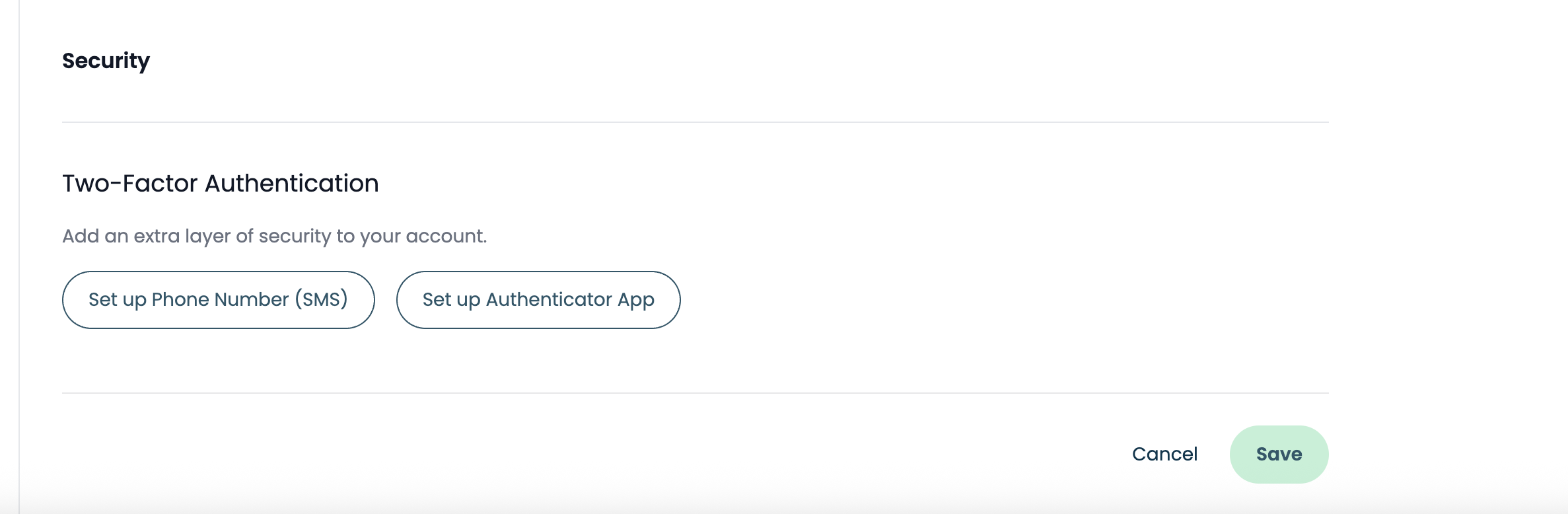
- In your profile settings, scroll down until you see a section labeled Security.
- Under “Security,” find the subsection titled Two-Factor Authentication.
- Set up Phone Number (SMS)
- Set up Authenticator App
2. Enrolling via SMS (Phone Number)
Use this method if you prefer to receive a one-time code via text message each time you sign in.
- Click “Set up Phone Number (SMS)”
- A prompt will appear asking you to enter your mobile phone number.
- Be sure to enter a number that can receive standard SMS messages.
- Enter and Verify Your Phone Number
- Type your mobile number (including country code) and click Next (or Send Code).
- You will receive a 6-digit verification code via SMS within a few seconds.
- Enter the Verification Code
- In the field that appears, enter the 6-digit code from the SMS.
- Click Verify (or Submit).
- Confirmation
- Once the code is verified, you’ll see a confirmation message indicating that SMS-based 2FA is active.
- Click Save at the bottom of the Security section to finalize your settings.
What Happens Next?
- On future sign-ins, after entering your email and password, you will be prompted to enter the 6-digit code sent to your phone.
- If you change or lose access to that phone number, contact Support to update or disable your SMS-based 2FA (see Section 6).
3. Enrolling via Authenticator App
Use this method if you prefer to generate TOTP (time-based one-time password) codes using an authenticator app. Apps such as Google Authenticator, Microsoft Authenticator, or Authy work equally well.
- Click “Set up Authenticator App”
- A QR code and a text-based secret key will appear on the screen.
- Open Your Authenticator App
- On your mobile device, open your chosen authenticator app.
- Select Add a New Account (often shown as a “+” or “Scan QR Code” option).
- Scan the QR Code (or Enter the Secret Key Manually)
- Use your device’s camera to scan the QR code displayed on your profile settings page.
- If you cannot scan the QR code, choose the “Enter key manually” option in the app and type the secret key exactly as shown.
- Enter the One-Time Code
- Once you’ve scanned or entered the key, your authenticator app will display a 6-digit code that refreshes every 30 seconds.
- Type the current 6-digit code into the verification field on our website.
- Click Verify (or Submit).
- Confirmation
- After the code is verified successfully, you’ll see a confirmation message indicating that authenticator-based 2FA is active.
- Click Save at the bottom of the Security section to finalize your settings.
What Happens Next?
- When you next sign in, you’ll enter your email and password, then open your authenticator app and enter the current 6-digit code.
- Keep your authenticator app installed and synced. If you lose access to your app or device, contact Support to disable or re-enroll your 2FA (see Section 6).
4. Managing or Disabling 2FA
- Returning to Security Settings
- Whenever you want to change your 2FA method (for example, switch from SMS to an authenticator app), revisit Settings › Security.
- Disabling an Existing Method
- If you’ve already enabled SMS or an authenticator app, you’ll see an option to Remove or Disable that method.
- Click Remove (or Disable) and confirm—this turns off 2FA until you set up a new method.
- Switching Methods
- To switch from SMS to an authenticator app (or vice versa), first disable your current 2FA method, then follow the steps in Section 2 or Section 3 to set up a new one.
- Recovery Codes (Optional)
- If your system offers recovery codes during setup, save them in a secure location. These codes can help you regain access if you lose your phone or authenticator app. (Note: Not all systems display recovery codes—if you see them, copy them down immediately.)
- If your system offers recovery codes during setup, save them in a secure location. These codes can help you regain access if you lose your phone or authenticator app. (Note: Not all systems display recovery codes—if you see them, copy them down immediately.)
Enforcing Multi-Factor Authentication (MFA) for Your Organisation
As the Owner of your organisation’s PatientNotes account, you can require all members to enable Multi-Factor Authentication (MFA). This adds an extra layer of security beyond email/password or SSO logins. Follow the steps below to configure, enforce, and manage MFA at the organisational level. (Australian spelling and grammar conventions have been used throughout.)
1. Navigate to Organisation Setup
- Sign in as the Owner (the account with “Owner” privileges).
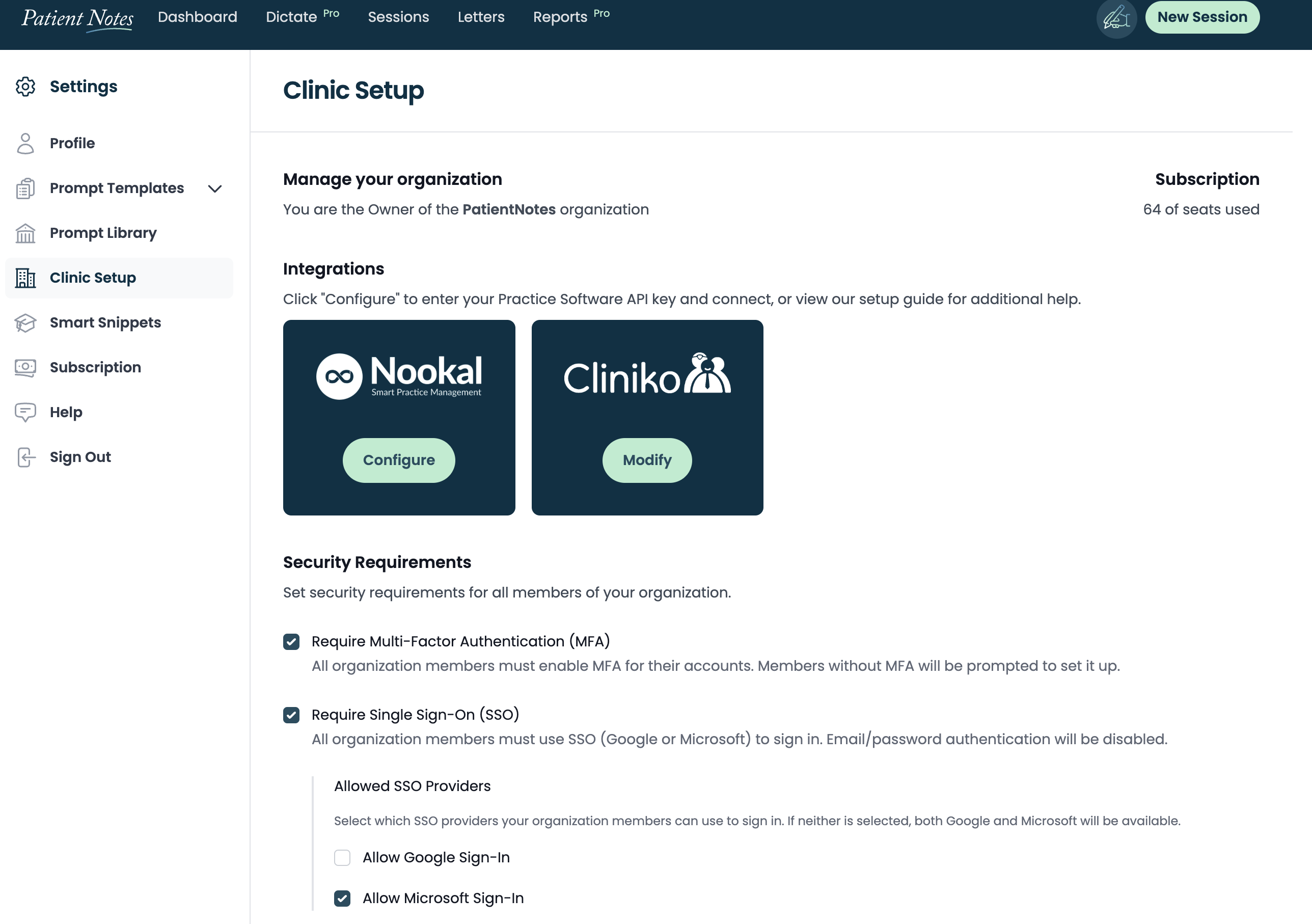
- In the left-hand sidebar, click Settings.
- Select Clinic Setup
2. Enable “Require Multi-Factor Authentication (MFA)”
- Scroll down to the Security Requirements section.
- Check the box labelled Require Multi-Factor Authentication (MFA).
- Once this option is selected, every member of your organisation must enable MFA on their account before they can access PatientNotes.
- Members who have not yet enrolled in MFA will see a prompt to set it up the next time they sign in.
- Click Save at the bottom of the page to apply your changes.
- You should see a confirmation banner that reads “Settings saved successfully.”
- You should see a confirmation banner that reads “Settings saved successfully.”
5. Troubleshooting Common 2FA Setup Issues
- No SMS Received
- Verify that you entered your phone number correctly, including country code/prefix.
- Check your phone’s signal strength; try again once you have a stable connection.
- If you still don’t receive a code, wait a couple of minutes and retry enrollment. If it continues to fail, contact Support.
- Authenticator App Codes Are Invalid
- Ensure your device’s time is set to “Automatic” (network-provided). If your phone’s clock is even slightly off, codes may not match.
- Delete the entry for our account in your authenticator app and re-scan the QR code from Settings › Security.
- If re-scanning fails, contact Support to reset your 2FA and start over.
- Can’t Click “Save”
- If you enable 2FA but forget to click Save at the bottom of the Security section, your settings won’t be applied. Always scroll down and click Save after completing the verification step.
- If “Save” remains disabled, make sure you have completed the verification process (entered a valid code).
If you run into any issues or need to reset/disable your 2FA because you lost access to your phone or authenticator app, please reach out to hello@patientnotes.app
New to PatientNotes?
Learn more about how it works or start your free trial.
Frequently asked questions
How does PatientNotes work?
Individual signs up, patient consents, session is recorded, transcribed, AI Model used to generate a draft of your clinical notes, then context gained to create a Patient Summary and any needed letters to medical professionals.
I've been told I can't use ChatGPT with patient information, is it ok to use this?
ChatGPT isn't safe to use with patient information. Data entered into ChatGPT is retained for wider language learning models and often patient information is being entered into ChatGPT without consent. PatientNotes is different. Explicit consent from the patient is required for each session. Transcripts are heavily protected with layers of encryption and strict policies, stored in Sydney in Google's HIPAA compliant data center, and automatically deleted after 30 days.
Is a special microphone required?
Most practitioners start using their default laptop microphone, however for the best results we recommend having a dedicated USB microphone on your desk. Omnidirectional USB microphones work great. Read all about our microphone recommendations on our microphone support page.
Can I use PatientNotes on my mobile phone?
Yes. Navigate to patientnotes.app on your web browser, login, and away you go. Recording works great on mobile devices and on most devices will continue even when the screen locks.
Where are PatientNotes servers located?
PatientNotes runs on servers located in Sydney, Australia. We have plans to have dedicated servers in each country with data stored locally for each user where possible eg. If a user sets their country to United States, their data will reside in the United States.
Does PatientNotes use encryption?
Absolutely. Security and Privacy is critical to protecting personal information. We encrypt all information in transit and at rest. Read more on our Security page.
Is the use of AI in healthcare safe and reliable?
We think of AI as an assistant to the medical practitioner rather than replacing the practitioner in any way. The role of our AI systems are to help produce a draft for the practitioner. Beyond that, it’s up to the practitioner to make the required changes to ensure that the notes are accurate before adding them to a patient record. More broadly, we believe AI has an incredible ability to analyse large amount of data and assist humans, but anything it produces must be validated by a qualified medical professional.
Can AI replace human doctors or healthcare providers?
No. Machines can’t replace doctors or healthcare professionals.
Does the system generate a diagnosis?
The system is fine tuned to not provide a diagnosis and focus just on the facts that were inputted by the healthcare provider during the consultation.
Does PatientNotes comply with all Australia privacy and data retention acts and legislation?
Yes. In Australia we comply with the Privacy Act 1988, Health Records Act 2001 (Victoria) and other national legislation with regards to the storage of personal information. Privacy and Security is critical to our business and we take both incredibly seriously. An important design consideration that we have built into the system is to remove data that isn’t needed anymore, which is why all patient information is automatically deleted after 30 days.
Is PatientNotes HIPAA Compliant?
PatientNotes is fully HIPAA compliant. A Business Associate Agreement (BAA) is available to all US customers. To request a BAA, please contact compliance@patientnotes.app
Do I really need to proofread the drafts PatientNotes produces?
Proofreading clinical notes and letters is of utmost importance to ensure their accuracy and reliability as a representation of the supplied information. Mistakes or inaccuracies in medical documentation can have serious consequences, leading to misdiagnosis, incorrect treatment plans, and compromised patient care. Thorough proofreading allows healthcare professionals to review and correct any errors, inconsistencies, or missing information, ensuring that the final notes and letters are a true reflection of the patient's condition and the provided information. This attention to detail enhances communication, promotes patient safety, and facilitates effective collaboration among healthcare teams.