

How to Use the Multi-Language Recording Option
Our new feature allows you to record audio in different languages seamlessly. Follow these steps to get started and explore some advanced tips for maximizing this feature.
Step-by-Step Instructions
- Select Your Language:
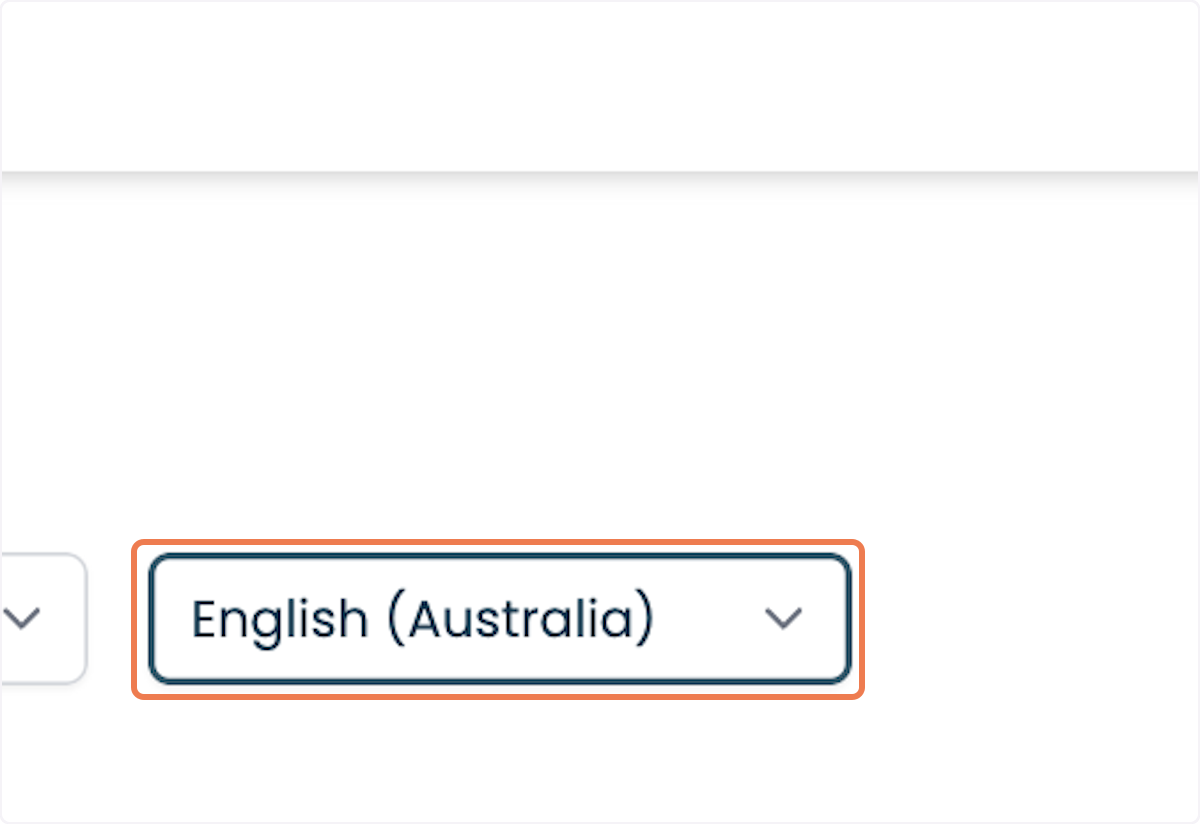
- Locate the dropdown language select button on the recording interface.
- Locate the dropdown language select button on the recording interface.

- Click on the dropdown menu and choose your preferred language from the list.
- Click on the dropdown menu and choose your preferred language from the list.
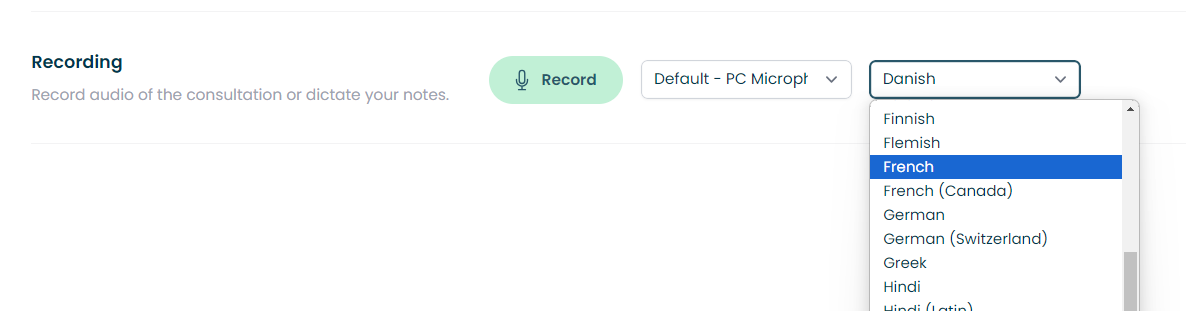
- Start Recording:
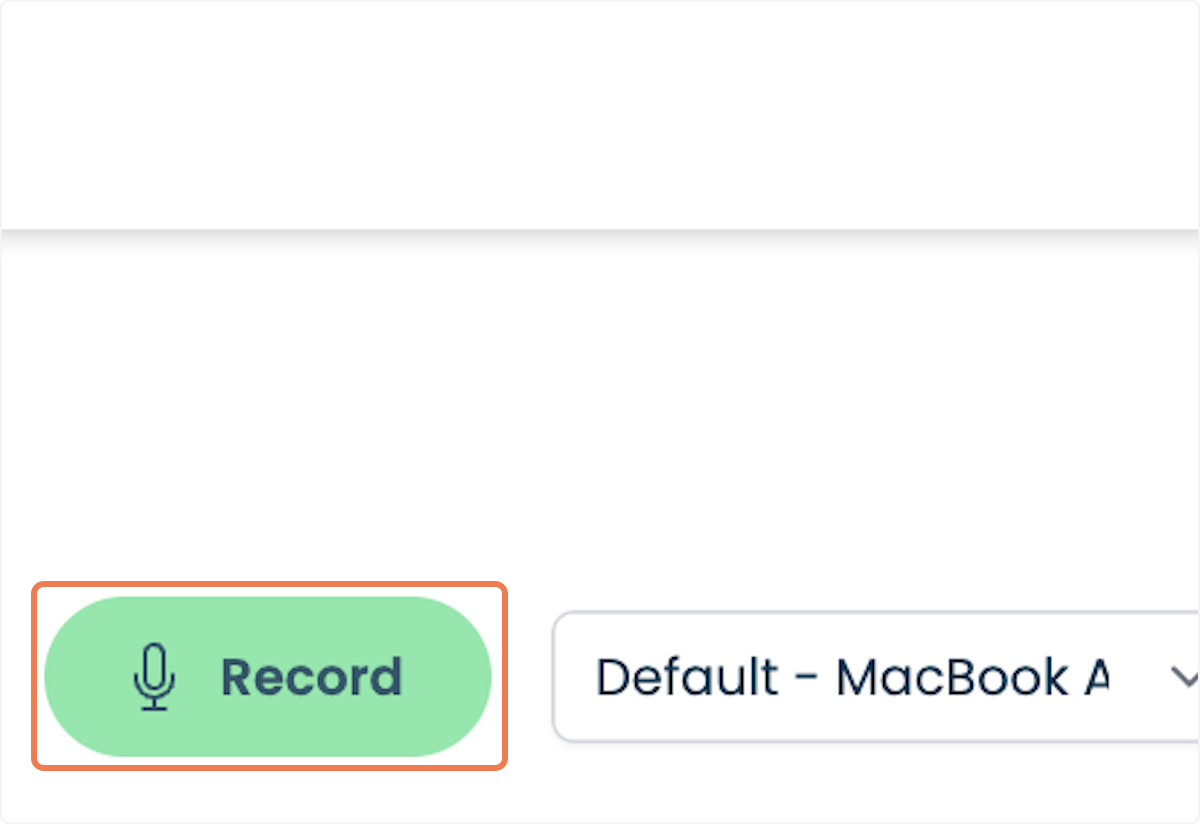
- After selecting your language, click the record button to begin recording your audio in the chosen language.
Advanced Tips
- Multiple Recordings:
- You can have multiple recordings within a single document. This means you can record one part in French, another part in English, and so on.
- To do this, simply select the desired language for each new recording before hitting the record button.
Important Note
- Sticky Language Selection:
- The last language you select will remain as the default language even after you refresh the page or close and reopen the browser. This "sticky" feature ensures that your preferred language is ready for use without needing to reselect it each time.
By following these steps and utilizing the advanced tips, you can efficiently manage audio recordings in multiple languages within your documents. Enjoy the flexibility and convenience of our new multi-language audio input feature!
1. Type the Patient Name.
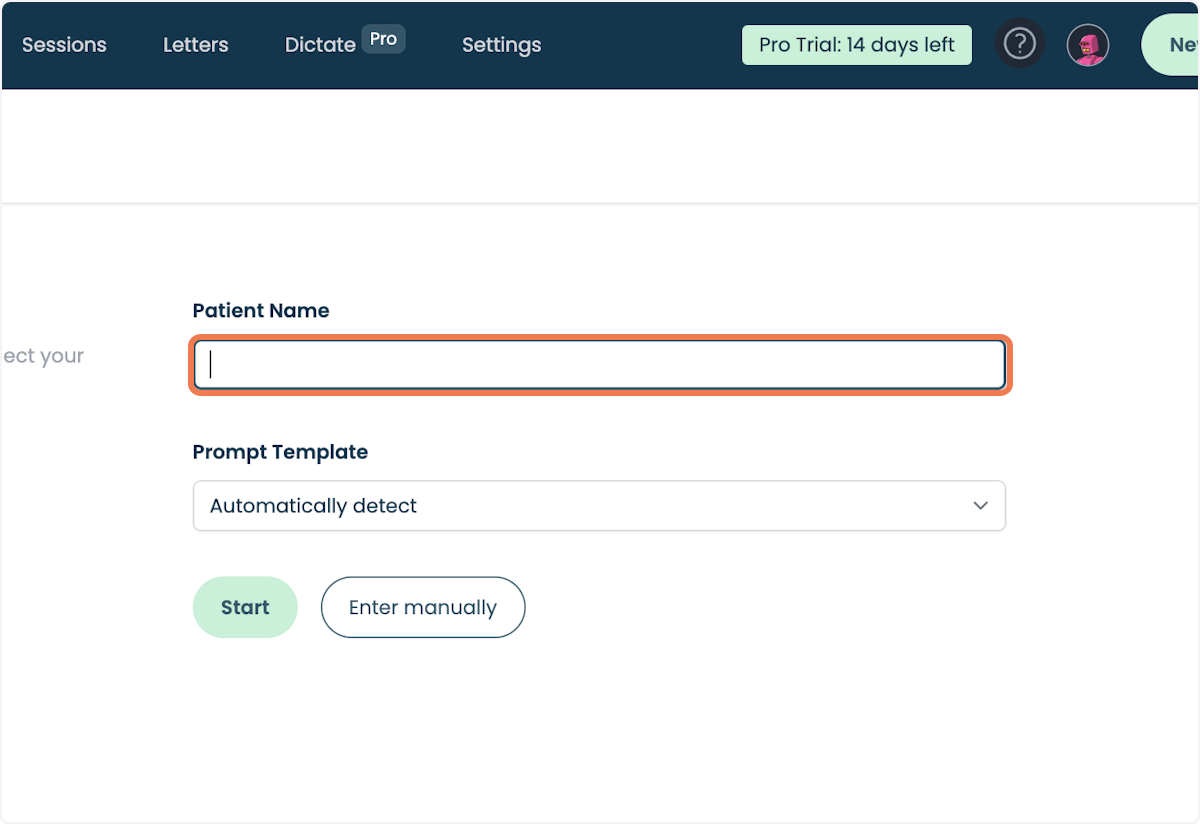
2. Click on Prompt Template and select an option.
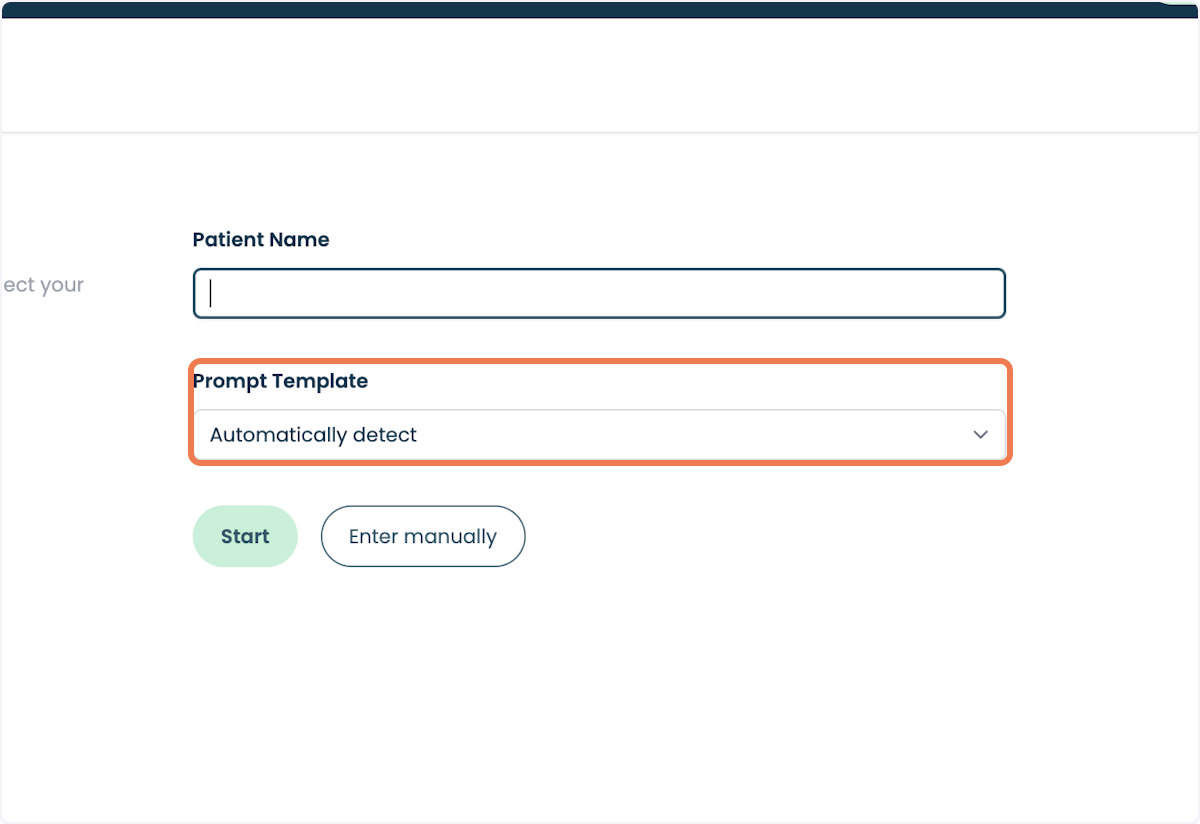
3. In this example, we've selected "Select Automatically detect from Prompt Template".
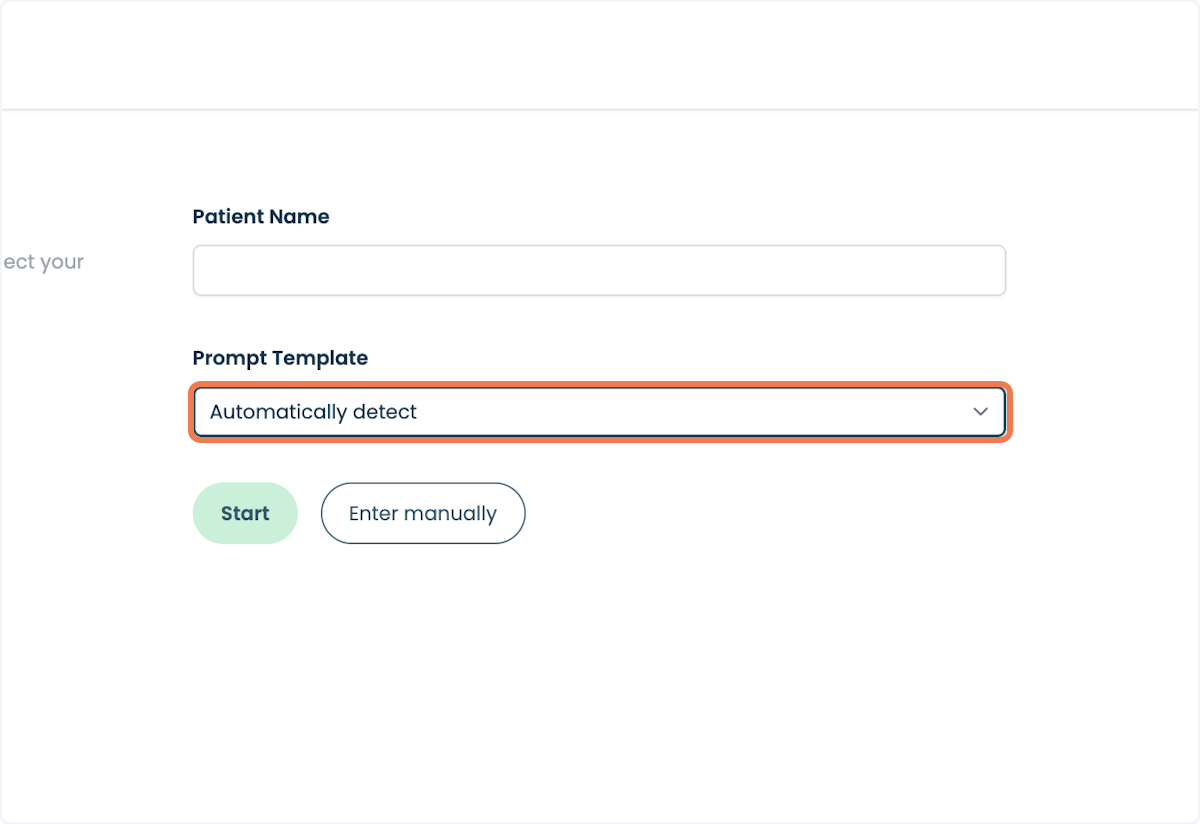
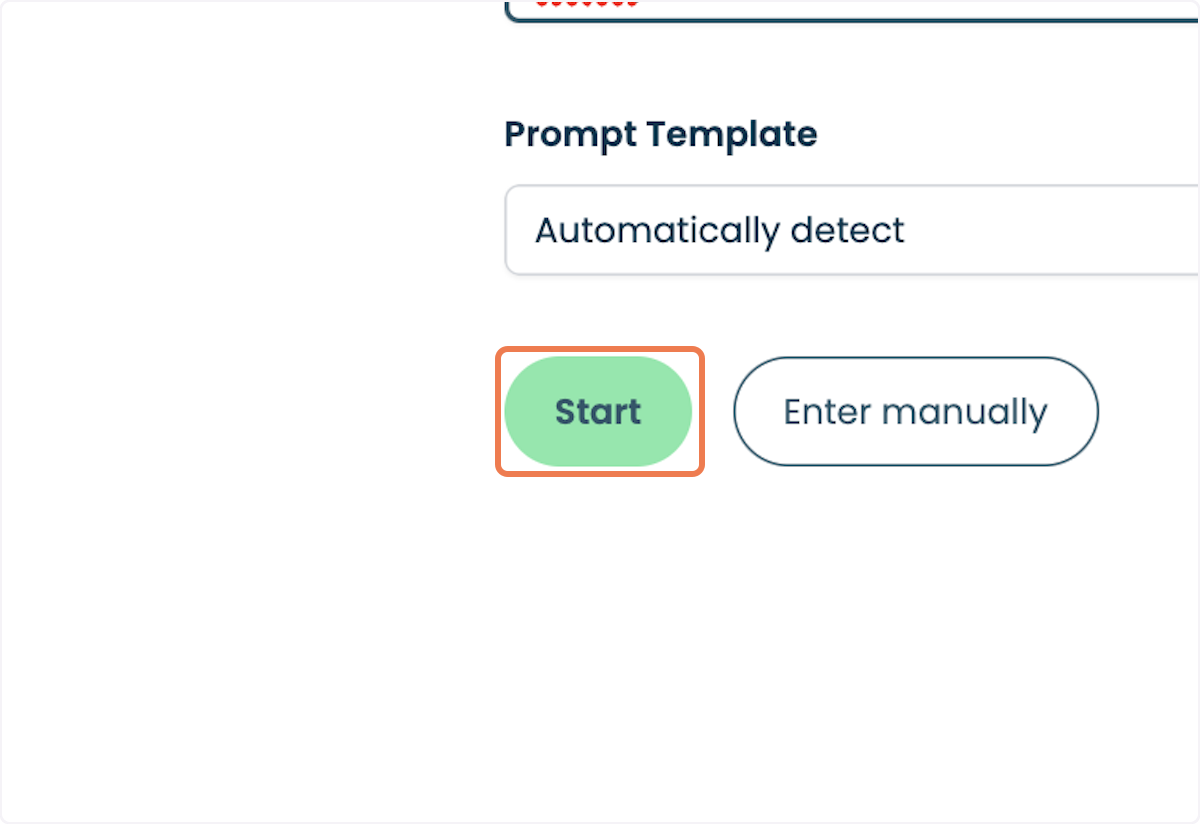
4. Click on Start.
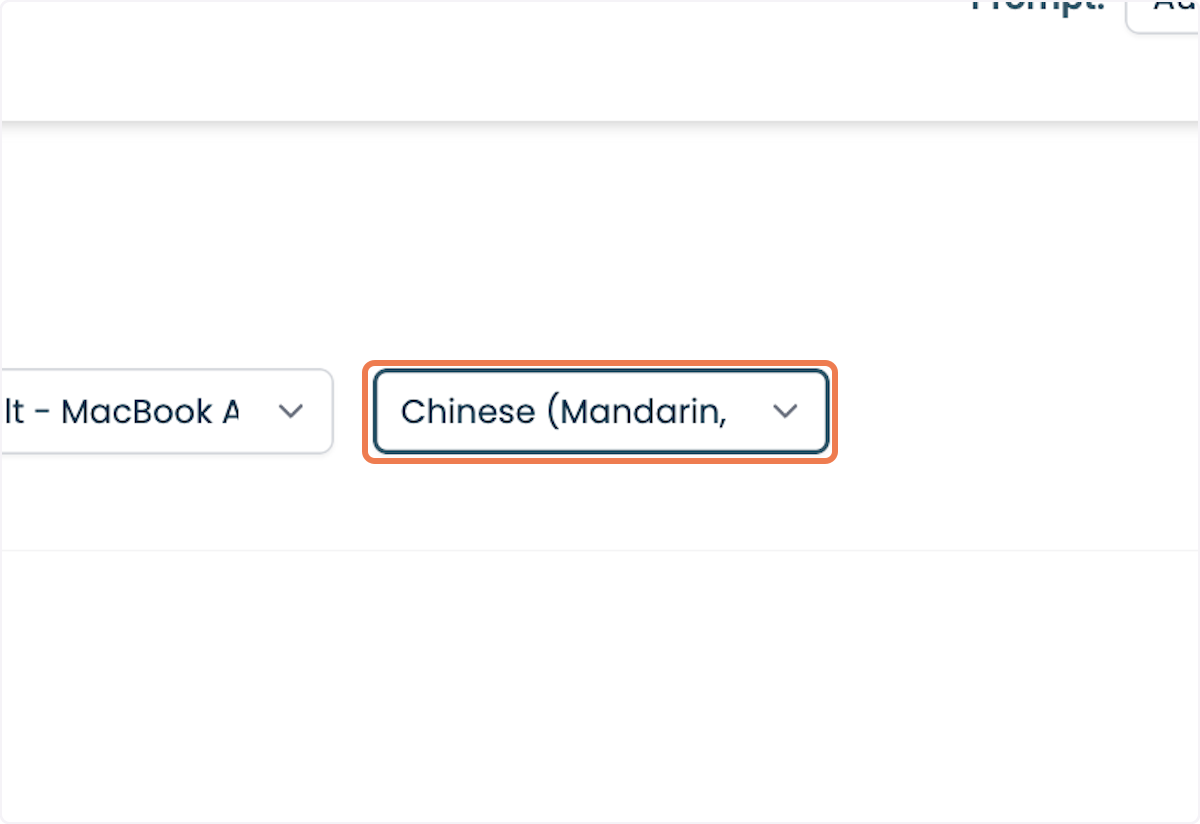
5. Select a language option. In this example, we've chosen "Chinese (Mandarin, Simplified)" from the Language dropdown.
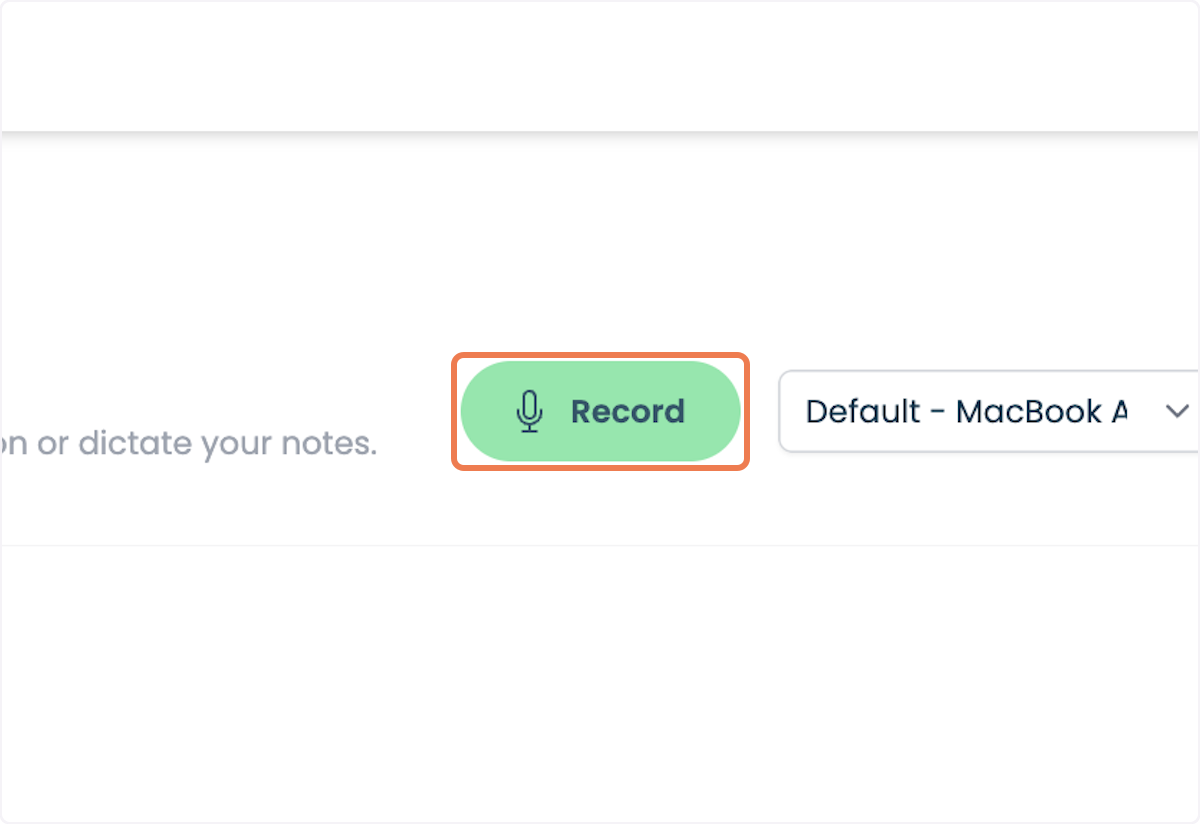
6. Click on Record
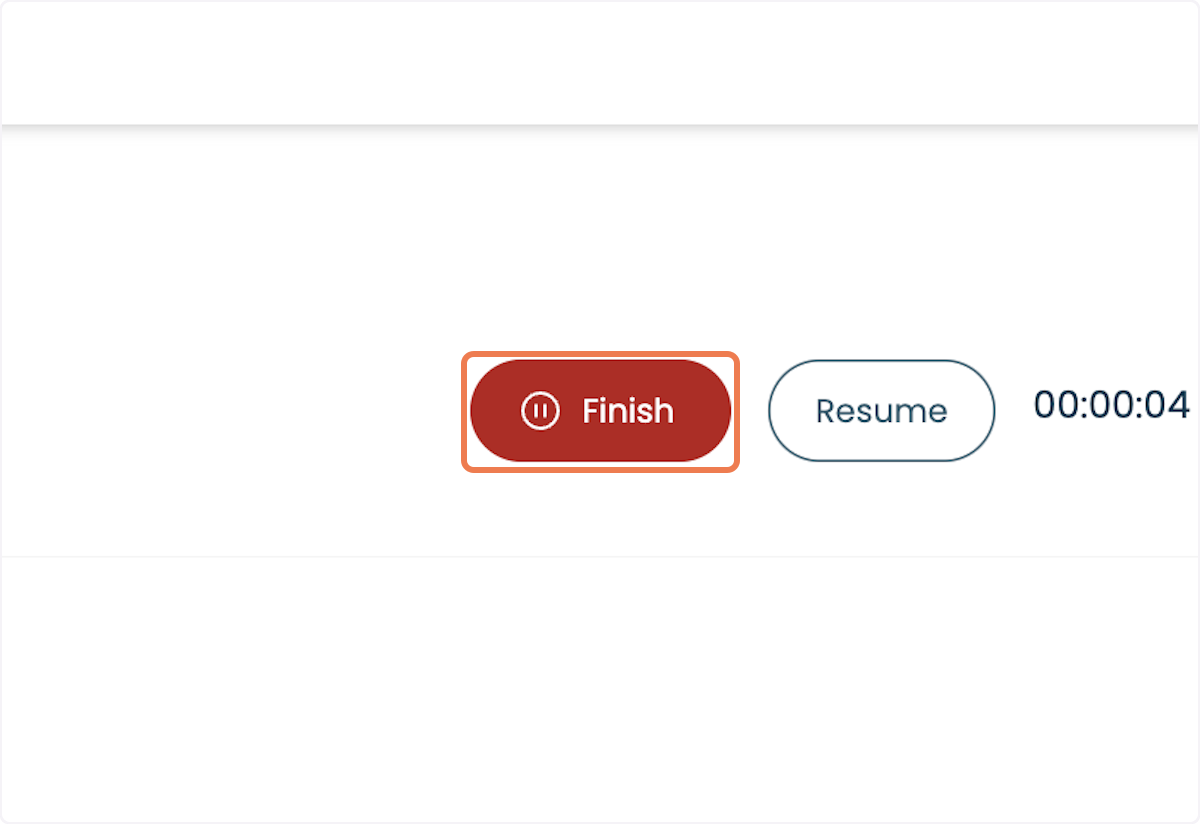
7. Click on Finish.
8. You can have multiple recordings within a single document. This means you can record one part in Chinese, another part in English, and so on. To do this, simply select the desired language for each new recording before hitting the record button.
Important Note: Sticky Language Selection
The language you select will remain as the default even after refreshing the page or reopening the browser. This "sticky" feature ensures that your preferred language is always ready for use without needing to reselect it each time.
9. Click on Record.
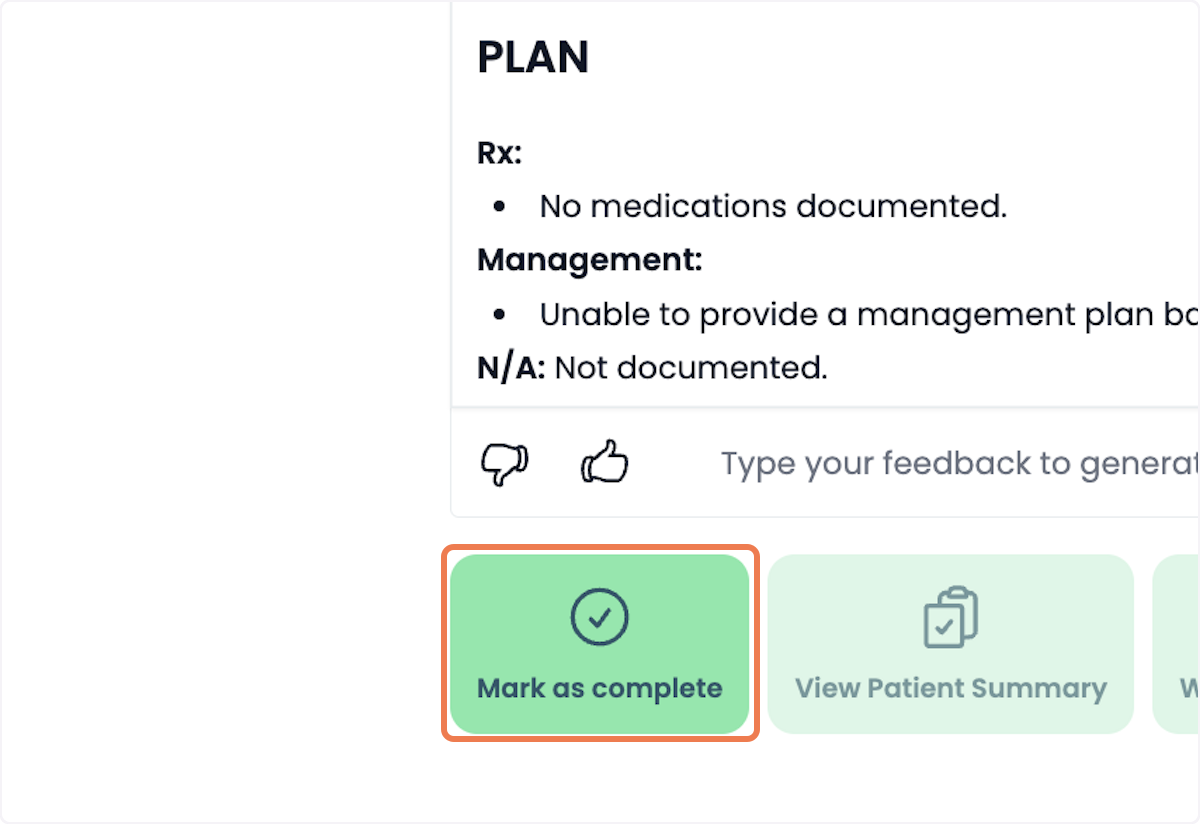
10. Once you are done with multiple recordings in multiple languages, click on Mark as complete.
New to PatientNotes?
Learn more about how it works or start your free trial.
Frequently asked questions
How does PatientNotes work?
Individual signs up, patient consents, session is recorded, transcribed, AI Model used to generate a draft of your clinical notes, then context gained to create a Patient Summary and any needed letters to medical professionals.
I've been told I can't use ChatGPT with patient information, is it ok to use this?
ChatGPT isn't safe to use with patient information. Data entered into ChatGPT is retained for wider language learning models and often patient information is being entered into ChatGPT without consent. PatientNotes is different. Explicit consent from the patient is required for each session. Transcripts are heavily protected with layers of encryption and strict policies, stored in Sydney in Google's HIPAA compliant data center, and automatically deleted after 30 days.
Is a special microphone required?
Most practitioners start using their default laptop microphone, however for the best results we recommend having a dedicated USB microphone on your desk. Omnidirectional USB microphones work great. Read all about our microphone recommendations on our microphone support page.
Can I use PatientNotes on my mobile phone?
Yes. Navigate to patientnotes.app on your web browser, login, and away you go. Recording works great on mobile devices and on most devices will continue even when the screen locks.
Where are PatientNotes servers located?
PatientNotes runs on servers located in Sydney, Australia. We have plans to have dedicated servers in each country with data stored locally for each user where possible eg. If a user sets their country to United States, their data will reside in the United States.
Does PatientNotes use encryption?
Absolutely. Security and Privacy is critical to protecting personal information. We encrypt all information in transit and at rest. Read more on our Security page.
Is the use of AI in healthcare safe and reliable?
We think of AI as an assistant to the medical practitioner rather than replacing the practitioner in any way. The role of our AI systems are to help produce a draft for the practitioner. Beyond that, it’s up to the practitioner to make the required changes to ensure that the notes are accurate before adding them to a patient record. More broadly, we believe AI has an incredible ability to analyse large amount of data and assist humans, but anything it produces must be validated by a qualified medical professional.
Can AI replace human doctors or healthcare providers?
No. Machines can’t replace doctors or healthcare professionals.
Does the system generate a diagnosis?
The system is fine tuned to not provide a diagnosis and focus just on the facts that were inputted by the healthcare provider during the consultation.
Does PatientNotes comply with all Australia privacy and data retention acts and legislation?
Yes. In Australia we comply with the Privacy Act 1988, Health Records Act 2001 (Victoria) and other national legislation with regards to the storage of personal information. Privacy and Security is critical to our business and we take both incredibly seriously. An important design consideration that we have built into the system is to remove data that isn’t needed anymore, which is why all patient information is automatically deleted after 30 days.
Is PatientNotes HIPAA Compliant?
PatientNotes is fully HIPAA compliant. A Business Associate Agreement (BAA) is available to all US customers. To request a BAA, please contact compliance@patientnotes.app
Do I really need to proofread the drafts PatientNotes produces?
Proofreading clinical notes and letters is of utmost importance to ensure their accuracy and reliability as a representation of the supplied information. Mistakes or inaccuracies in medical documentation can have serious consequences, leading to misdiagnosis, incorrect treatment plans, and compromised patient care. Thorough proofreading allows healthcare professionals to review and correct any errors, inconsistencies, or missing information, ensuring that the final notes and letters are a true reflection of the patient's condition and the provided information. This attention to detail enhances communication, promotes patient safety, and facilitates effective collaboration among healthcare teams.