

Using current clinical templates to start building prompts
How to use your existing letters and templates
Copy and paste the desired template from your practice management system or a document.
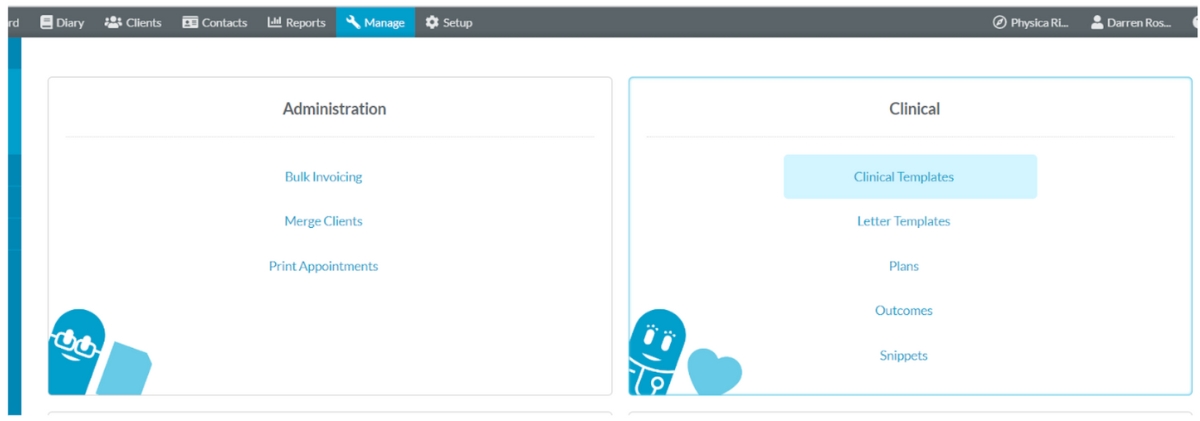
If you're utilizing your practice management system, choose the text from the clinical or letter template.
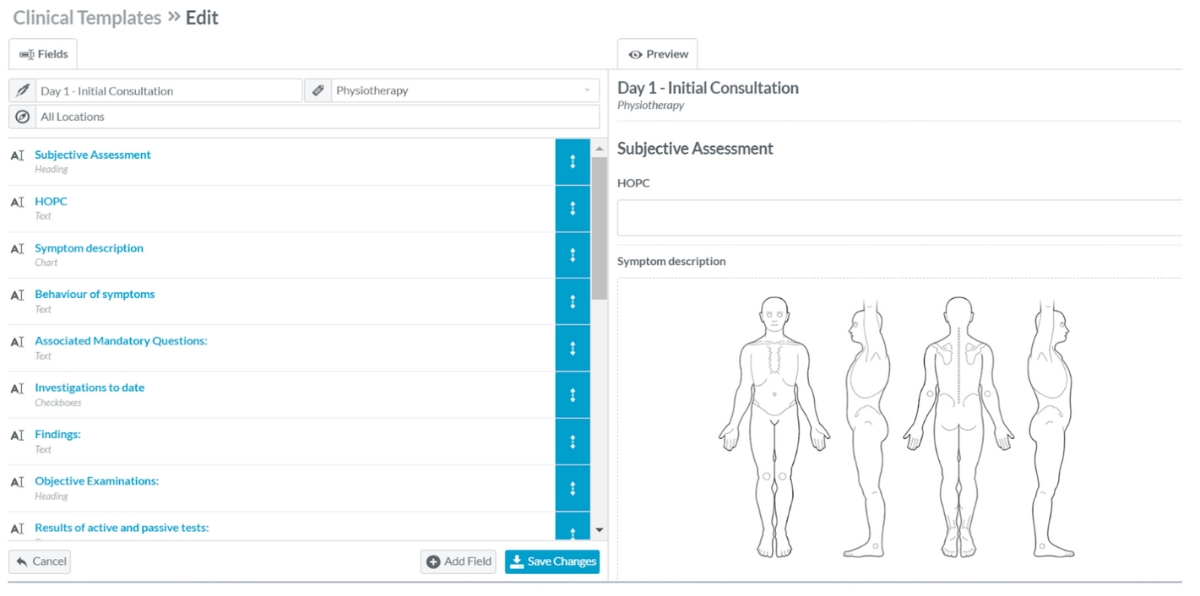
If you are using your practice management system, please select the relevant text from either the clinical or letter template. To incorporate the text, simply copy and paste it as needed.
Copying and pasting is a fundamental function that works similarly on both Windows and Mac operating systems.
To Copy:
- Highlight the text or file you want to copy.
- Right-click on the highlighted area.
- Select "Copy" from the context menu, or use the keyboard shortcut: 'Ctrl + C' (PC) or 'Command + C' (Mac).
To Paste:
- Move to the location where you want to paste the copied content.
- Right-click in the desired location.
- Select "Paste" from the context menu, or use the keyboard shortcut: 'Ctrl + V' (PC) or 'Command + V' (Mac).
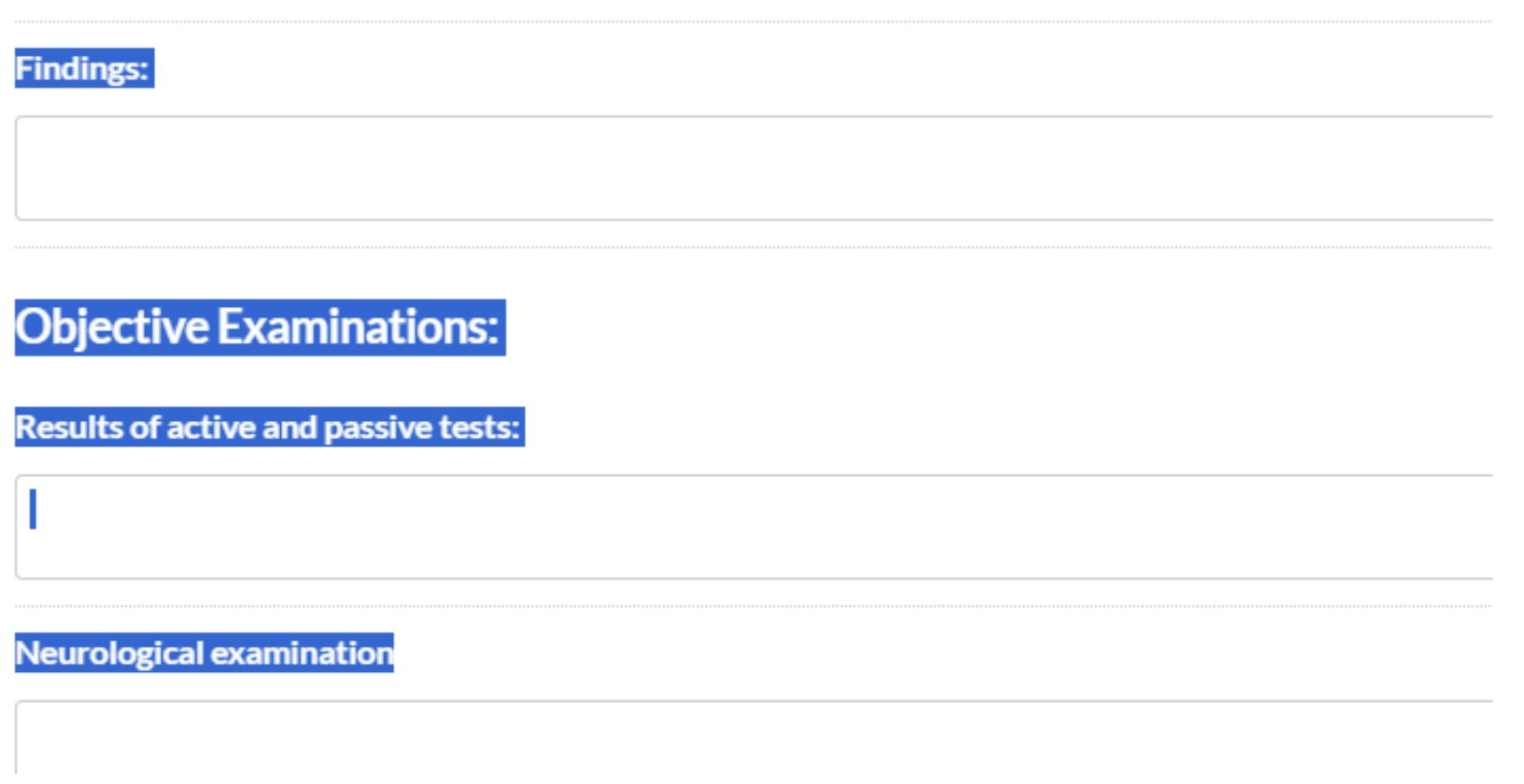
Having the content now on your clipboard, navigate to the prompt editing suite using the following link: patientnotes.app/dashboard/prompts
Paste the desired template content below the initial instructions.
SAVE your Prompts.
Then paste the following prompt ABOVE the pasted-in notes:
Generate detailed [musculoskeletal physiotherapy] clinical notes following the provided guidelines.
Edit profession to match your clinical practice.
When you copy / paste your notes across, it can bring across references from your Practice Management System - it is recommended to perform some tidying up at some point.
1. Copy the Desired Template
- Select the template you want to use from your practice management system or document.
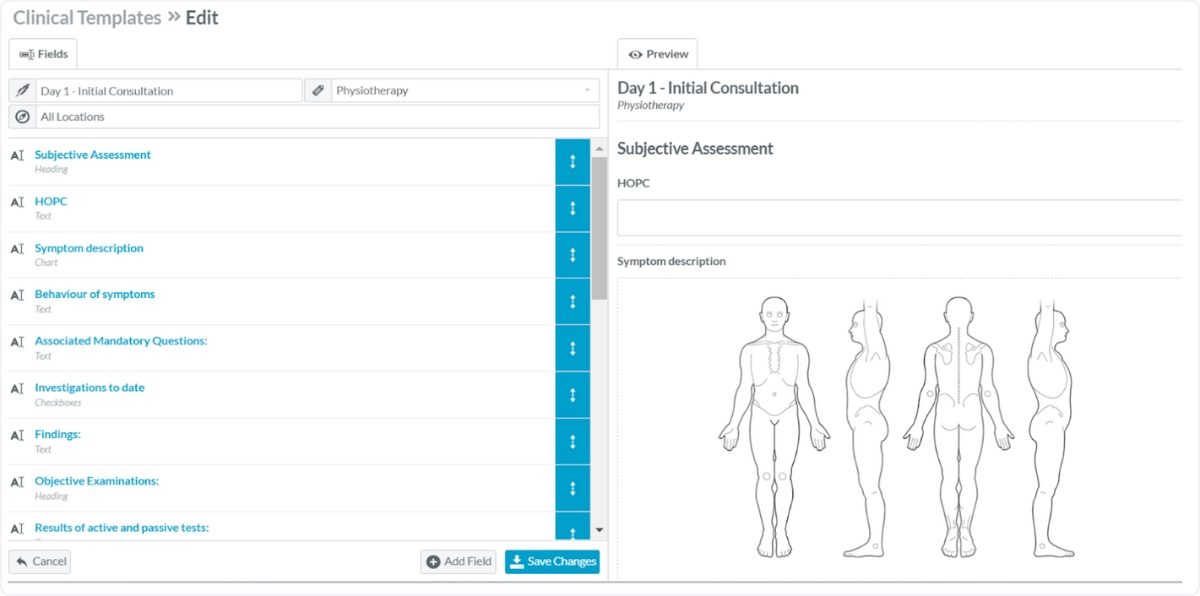
- If you're using Nookal, choose the relevant text from either the clinical or letter template.
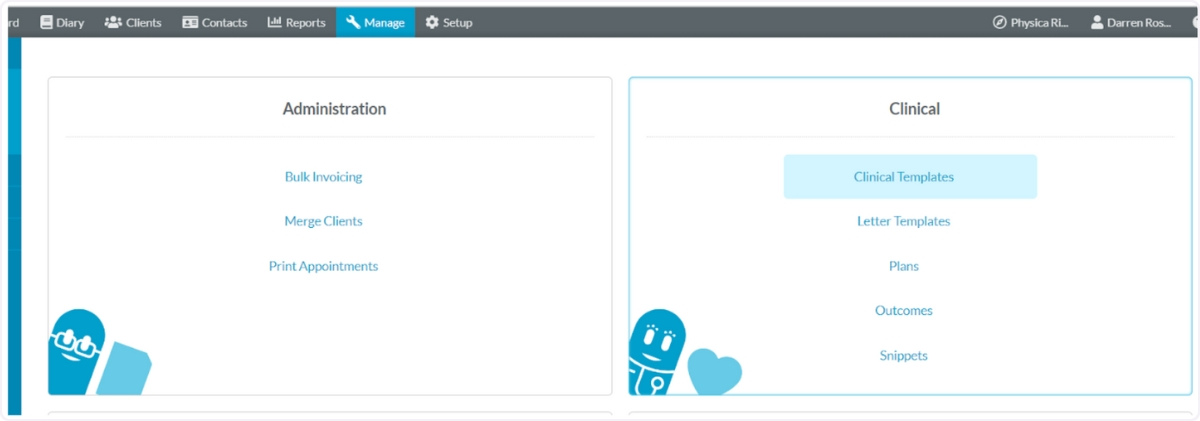
2. Copying and Pasting Instructions
To Copy:
- Highlight the text or file you wish to copy.
- Right-click the highlighted area and select "Copy", or use the shortcut:
- 'Ctrl + C' (Windows)
- 'Command + C' (Mac)
To Paste:
- Navigate to the location where you want to paste the copied content.
- Right-click and select "Paste", or use the shortcut:
- 'Ctrl + V' (Windows)
- 'Command + V' (Mac)
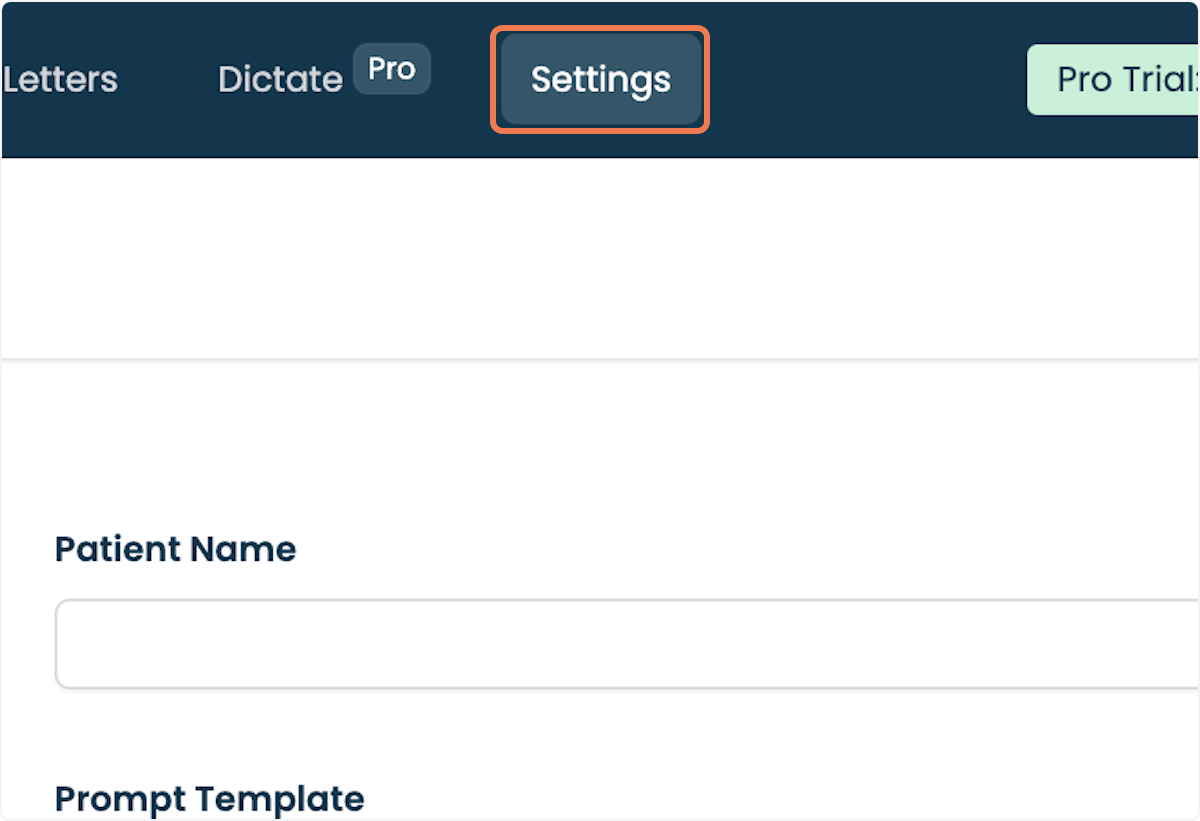
3. Click on Settings.
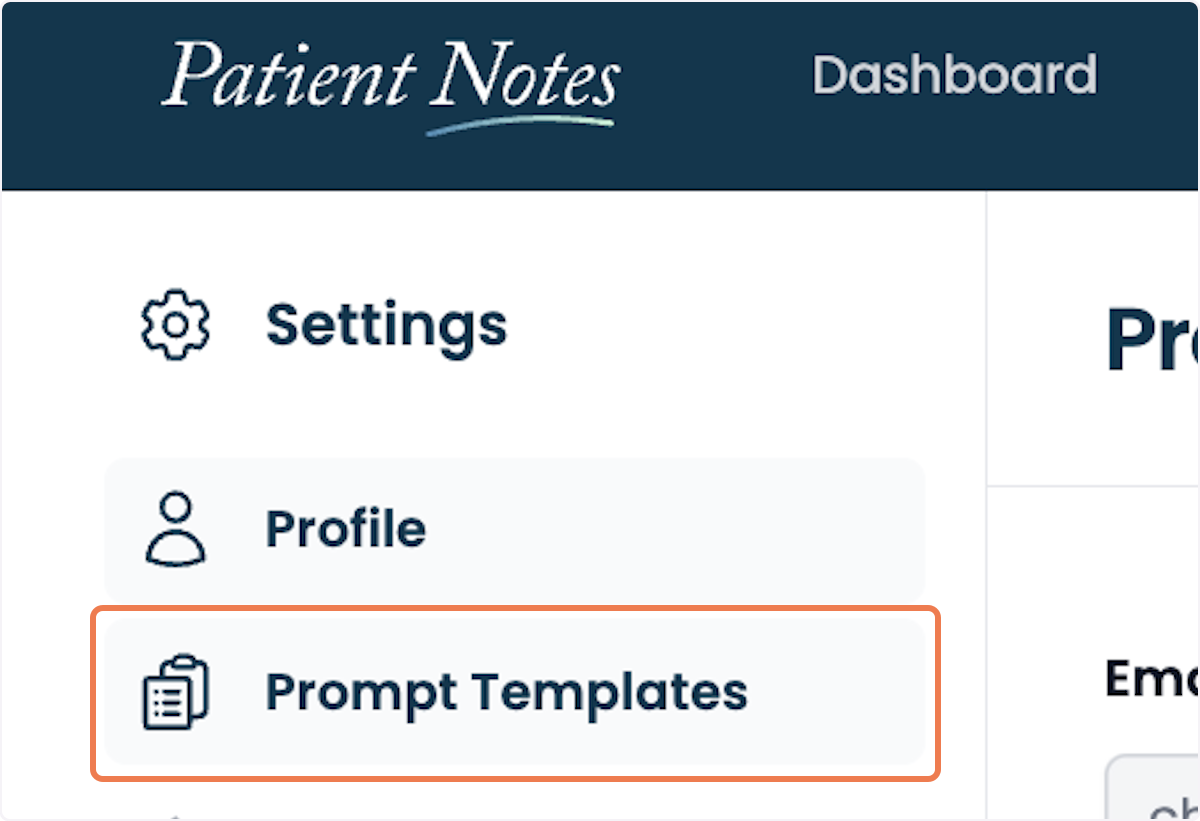
4. Click on Prompt Templates.
5. Click on Add.

6. Select an option for prompt type.
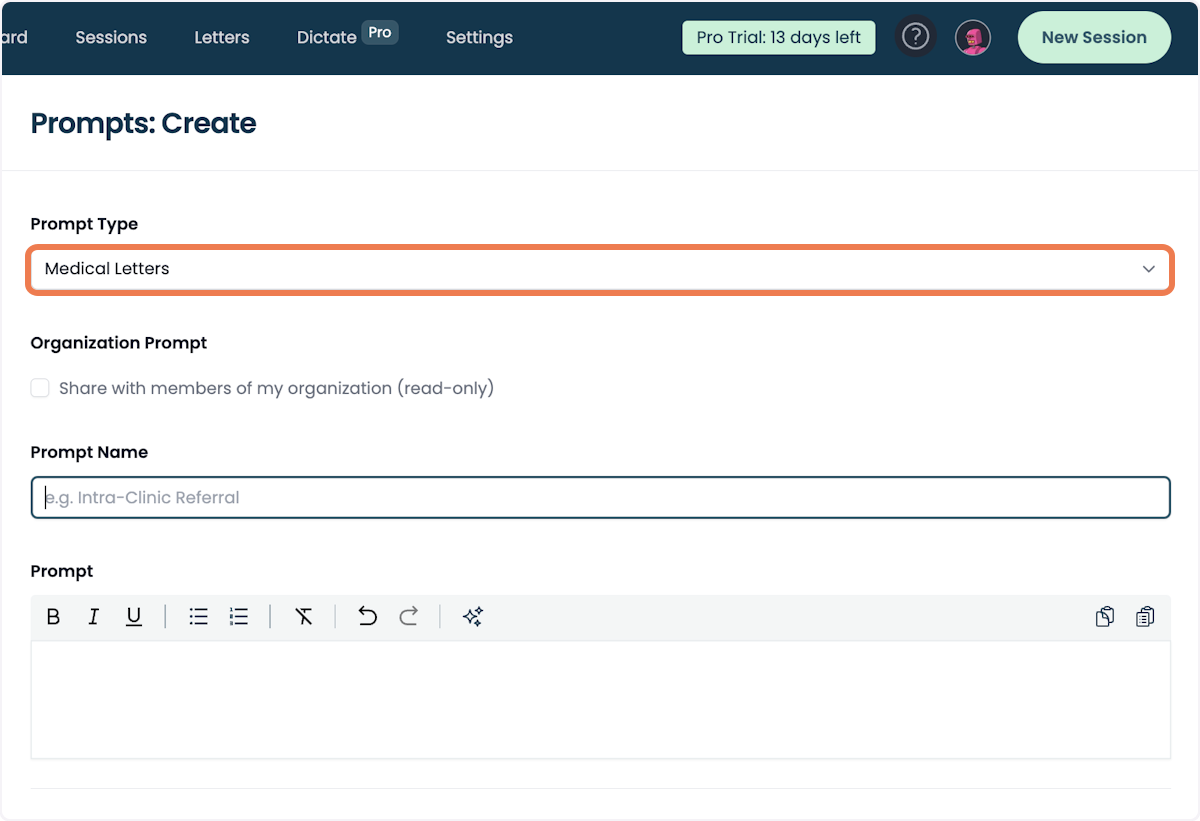
7. Enter a Prompt Name.
8. Type a name for the new prompt, in this example we've named it as "Custom Notes".
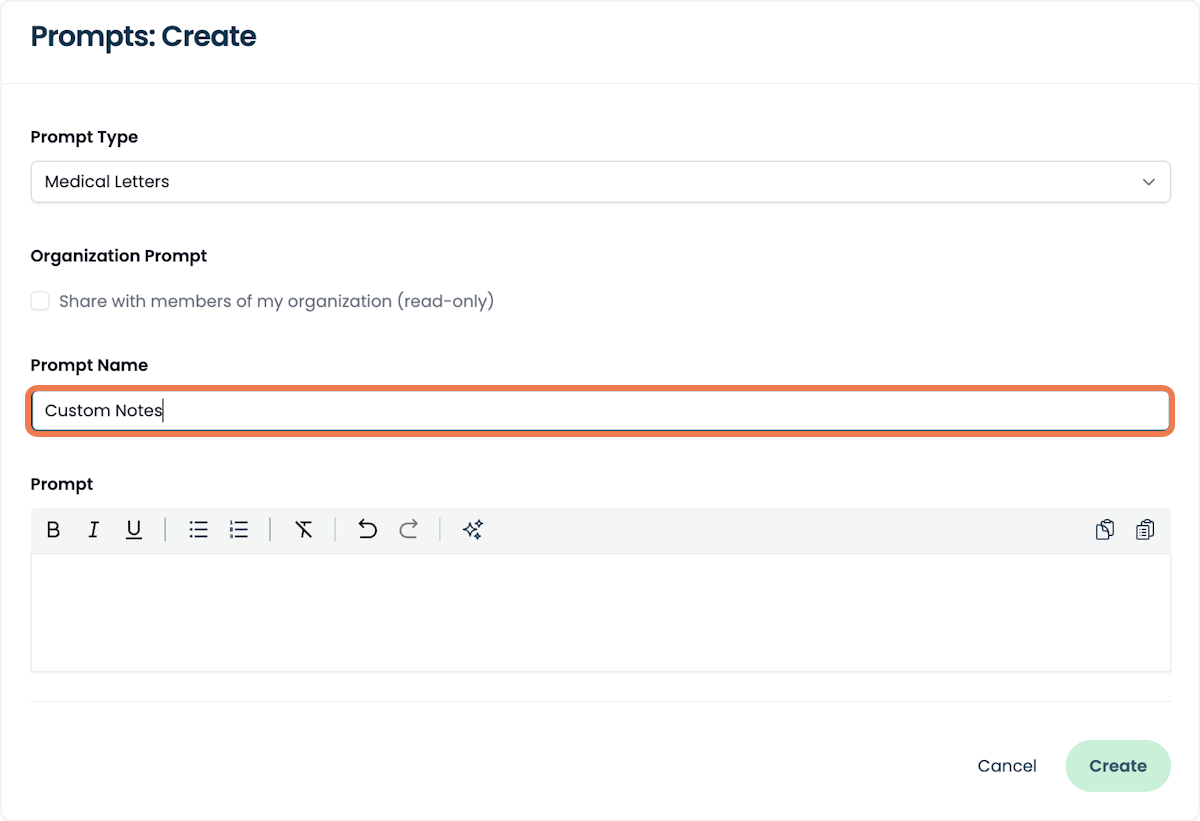
9. Paste the Content from Practice Management System into New Prompt
- Once you have copied your desired content, and you have navigated to the Prompt Editing Suite:
- Paste the copied template content below the initial instructions.
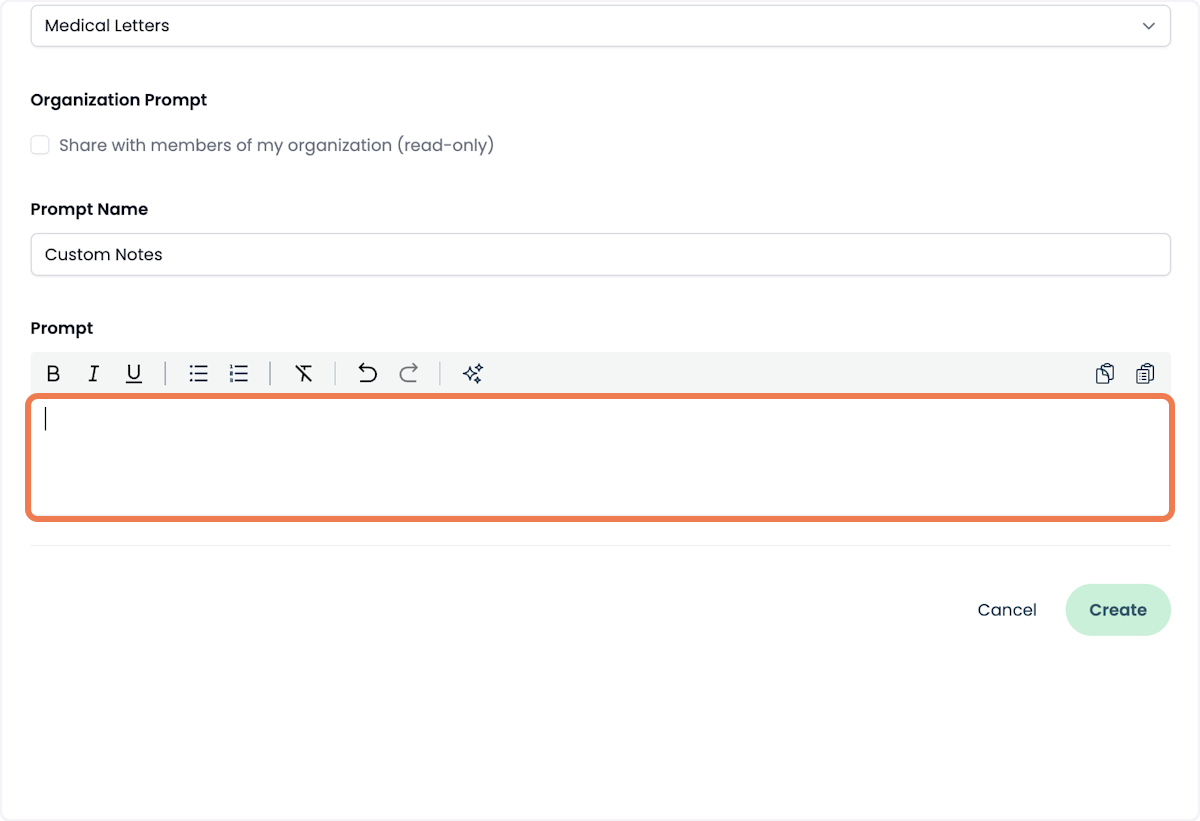
10. Click on the prompt field and make any edits as necessary.
- For example, paste the following prompt above the content you just pasted in:
- "Generate detailed [musculoskeletal physiotherapy] clinical notes following the provided guidelines."
- Edit the Profession
Be sure to adjust the profession in the prompt to match your clinical practice (e.g. "physiotherapy" etc.). - Review and Tidy Up
When you copy and paste your notes from the Practice Management System, they may bring over references or formatting. It’s recommended to review and clean up the content as needed for consistency and clarity.

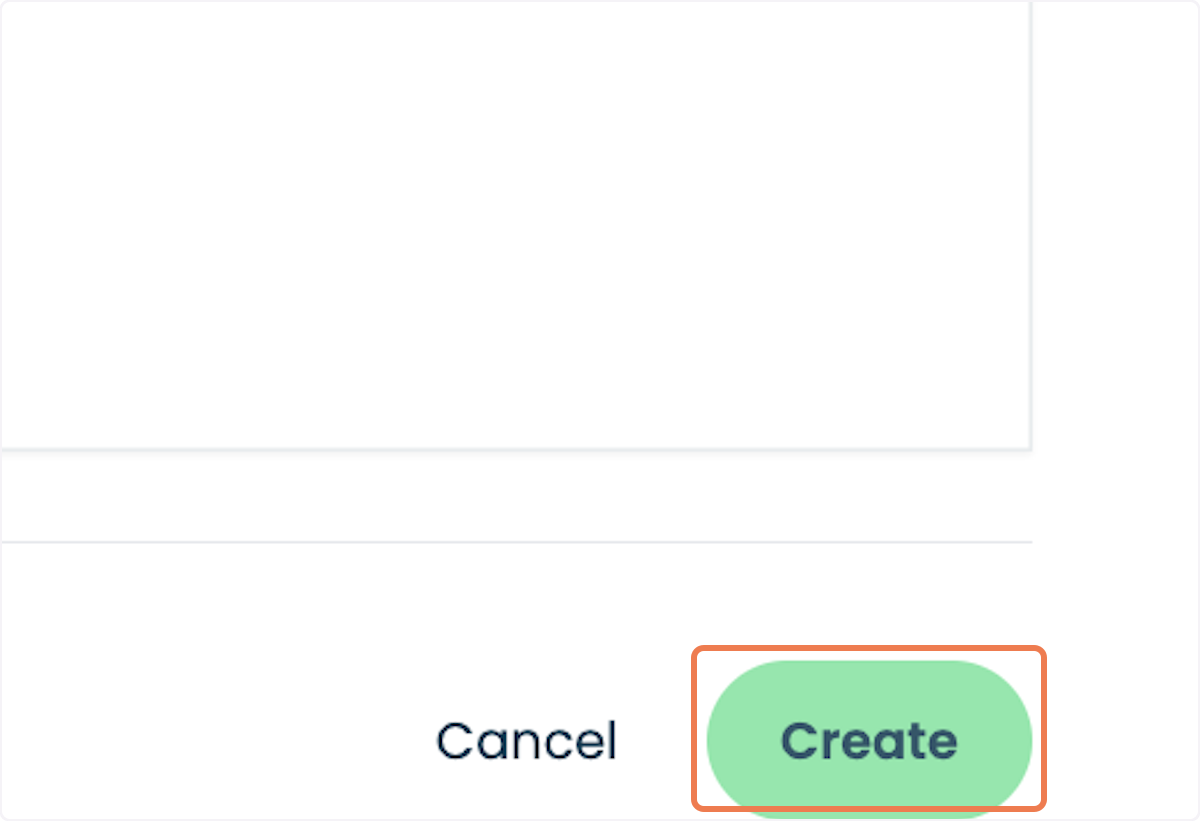
11. Click on 'Create' to generate a new prompt using your existing clinical template.
New to PatientNotes?
Learn more about how it works or start your free trial.
Frequently asked questions
How does PatientNotes work?
Individual signs up, patient consents, session is recorded, transcribed, AI Model used to generate a draft of your clinical notes, then context gained to create a Patient Summary and any needed letters to medical professionals.
I've been told I can't use ChatGPT with patient information, is it ok to use this?
ChatGPT isn't safe to use with patient information. Data entered into ChatGPT is retained for wider language learning models and often patient information is being entered into ChatGPT without consent. PatientNotes is different. Explicit consent from the patient is required for each session. Transcripts are heavily protected with layers of encryption and strict policies, stored in Sydney in Google's HIPAA compliant data center, and automatically deleted after 30 days.
Is a special microphone required?
Most practitioners start using their default laptop microphone, however for the best results we recommend having a dedicated USB microphone on your desk. Omnidirectional USB microphones work great. Read all about our microphone recommendations on our microphone support page.
Can I use PatientNotes on my mobile phone?
Yes. Navigate to patientnotes.app on your web browser, login, and away you go. Recording works great on mobile devices and on most devices will continue even when the screen locks.
Where are PatientNotes servers located?
PatientNotes runs on servers located in Sydney, Australia. We have plans to have dedicated servers in each country with data stored locally for each user where possible eg. If a user sets their country to United States, their data will reside in the United States.
Does PatientNotes use encryption?
Absolutely. Security and Privacy is critical to protecting personal information. We encrypt all information in transit and at rest. Read more on our Security page.
Is the use of AI in healthcare safe and reliable?
We think of AI as an assistant to the medical practitioner rather than replacing the practitioner in any way. The role of our AI systems are to help produce a draft for the practitioner. Beyond that, it’s up to the practitioner to make the required changes to ensure that the notes are accurate before adding them to a patient record. More broadly, we believe AI has an incredible ability to analyse large amount of data and assist humans, but anything it produces must be validated by a qualified medical professional.
Can AI replace human doctors or healthcare providers?
No. Machines can’t replace doctors or healthcare professionals.
Does the system generate a diagnosis?
The system is fine tuned to not provide a diagnosis and focus just on the facts that were inputted by the healthcare provider during the consultation.
Does PatientNotes comply with all Australia privacy and data retention acts and legislation?
Yes. In Australia we comply with the Privacy Act 1988, Health Records Act 2001 (Victoria) and other national legislation with regards to the storage of personal information. Privacy and Security is critical to our business and we take both incredibly seriously. An important design consideration that we have built into the system is to remove data that isn’t needed anymore, which is why all patient information is automatically deleted after 30 days.
Is PatientNotes HIPAA Compliant?
PatientNotes is fully HIPAA compliant. A Business Associate Agreement (BAA) is available to all US customers. To request a BAA, please contact compliance@patientnotes.app
Do I really need to proofread the drafts PatientNotes produces?
Proofreading clinical notes and letters is of utmost importance to ensure their accuracy and reliability as a representation of the supplied information. Mistakes or inaccuracies in medical documentation can have serious consequences, leading to misdiagnosis, incorrect treatment plans, and compromised patient care. Thorough proofreading allows healthcare professionals to review and correct any errors, inconsistencies, or missing information, ensuring that the final notes and letters are a true reflection of the patient's condition and the provided information. This attention to detail enhances communication, promotes patient safety, and facilitates effective collaboration among healthcare teams.